


This page explains how the order portal works, from choosing a product to tracking your order. Can't find your question here? Email us at portal@vanstraaten.com.
Go to: 5 steps · Choosing a product · Configuring a product · Print files · Cart and templates · Checkout and delivery · Quotes · Tracking orders · Complaints centre · Contact
ORDER IN 5 STEPS
- Choose your product through the Categories menu, a configurator or the search box.
- Configure the product: size, quantity, finishing, packaging and a reference.
- Link your print file, or upload it later.
- Check out: choose the delivery method, delivery date and delivery address, then place the order (or request a quote).
- Track your order under Orders, from file check to shipping.
CHOOSING A PRODUCT
There are three ways to start an order.
1. With a configurator
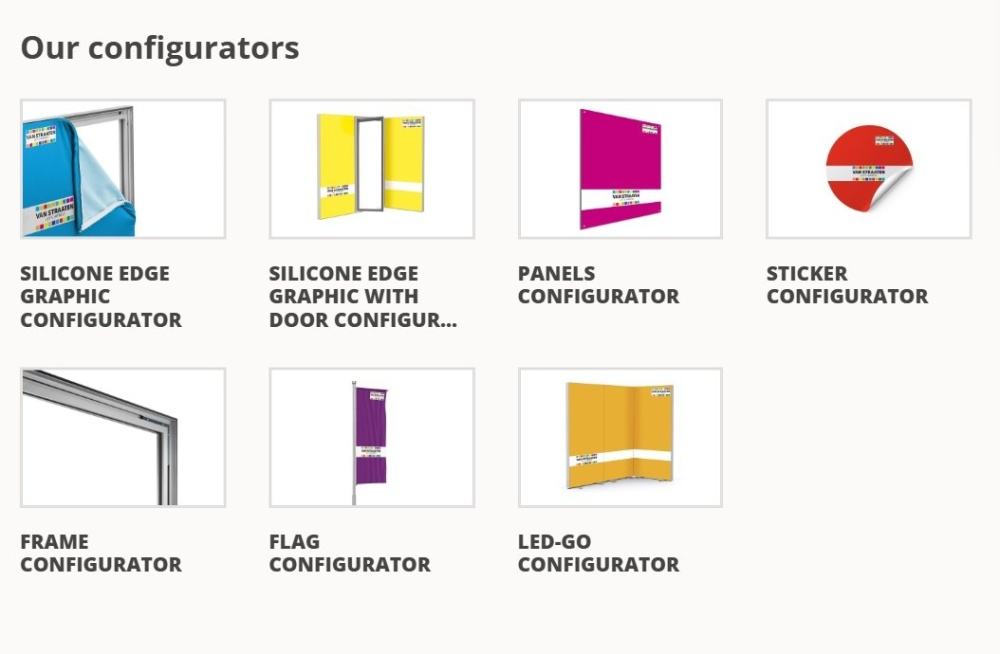
The dashboard has configurators for silicone edge graphics (also with a door), panels, stickers, frames, flags and LED-Go. The configurator asks step by step what you need and only shows the options that fit your choices. A big advantage: if you picked the wrong material by mistake, you simply switch material in the configurator without starting over.
2. With the Categories menu
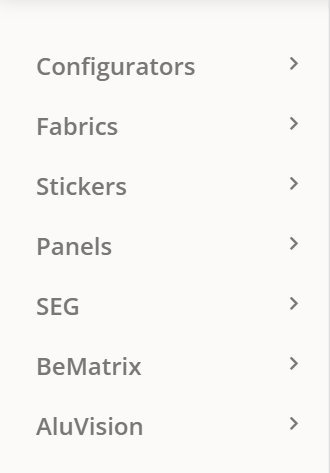
Know which material you want? Open the Categories menu on the left of the screen and choose, for example, Fabrics, Stickers, Panels or SEG. This takes you straight to the right material.
3. With the search box
Looking for a specific product? Click the magnifying glass at the top and type, for example, the name of the material.

CONFIGURING A PRODUCT
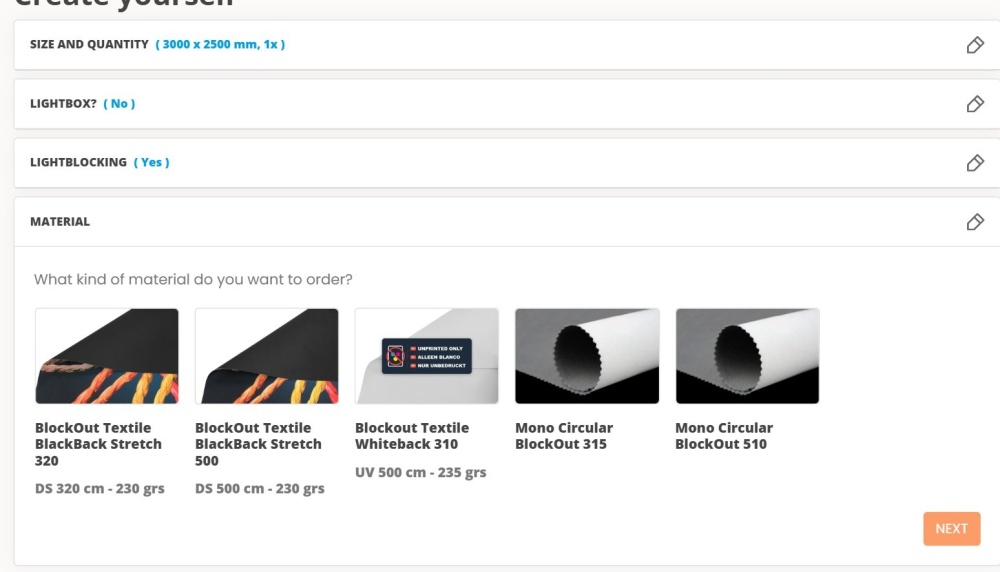
Every step you complete stays visible at the top with your choice next to it. Use the pencil icon to change an earlier step, for example to switch to a different material.
Size and quantity
Enter the size in the unit of your account (cm, mm or inches). The price is calculated straight away. Always enter a reference as well: you will see it in the cart, on the order and on the invoice, and the portal uses it to link files automatically.
Finishing
Choose how the fabric is finished, for example a silicone edge all around (for beMatrix, AluVision or slimframe), clean cut, eyelets, an open hem or hook and loop. For beMatrix and AluVision you can also indicate where the silicone edge should be notched; you do this in a notching layout on the line in the cart.
Printed or unprinted
Need a fabric without a print, for example as a blank back? Choose Unprinted. You then don't need to supply a file.
Packaging
Choose whether your print comes folded in a box or on a tube. For stickers and clean cut prints you then choose whether several prints may go on one tube or each print is packed separately.
PRINT FILES
Uploading with the HubLoader
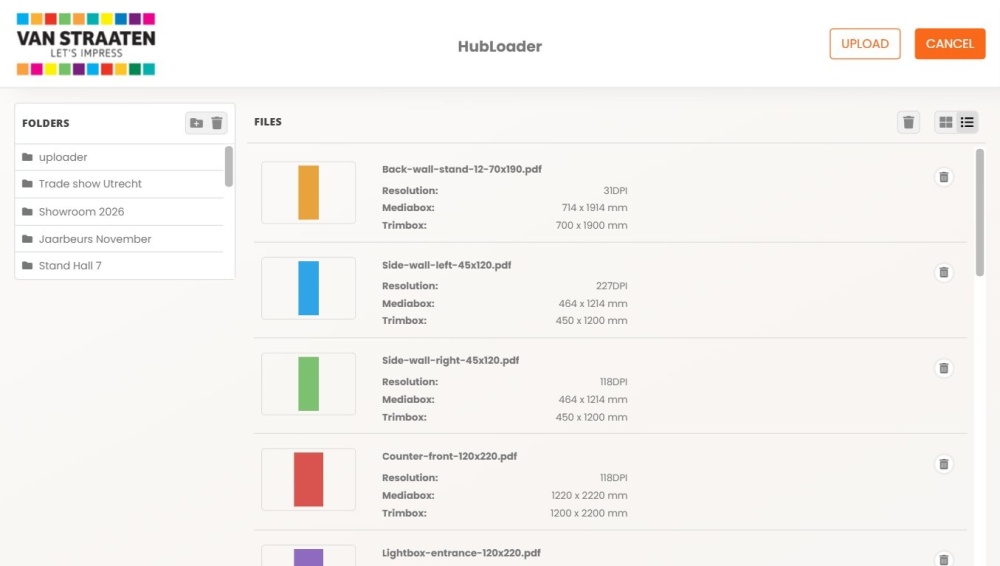
The HubLoader (the upload icon at the bottom left) is your file folder in the portal. You can upload several files at once and organise them in folders. After uploading you immediately see the size, the resolution and a preview, so you can check at a glance whether the file is right.
Automatic linking
If you give the file the same name as the reference of the item, the portal links it automatically. Conditions:
- The file is already in the HubLoader before you add the item to the cart.
- The aspect ratio of the file matches the size of the item.
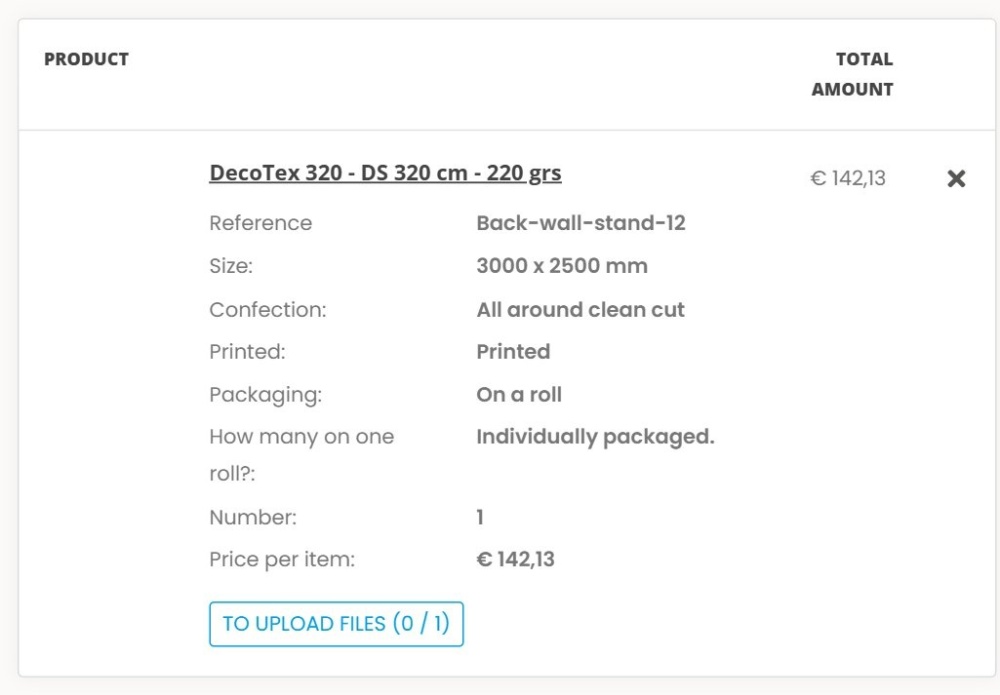
- Example: Back-wall-stand-12.pdf links to the item with reference Back-wall-stand-12.
Linking manually or uploading later
Each line in the cart has an upload button with a counter, for example 0 / 1. There you upload a file or pick one from the HubLoader. You can also place the order while the file isn't ready yet; the order then waits for your upload. If the aspect ratio of the file differs from the size, you get a message. In that case, adjust the size or the file.
Double-sided, contour cutting and multi-page PDFs
- Double-sided: you link one file for the front and one for the back.
- Contour cutting: add a cut line as a spot colour named cut. Without a cut line the file stays incomplete.
- Multi-page PDF: the portal splits the pages. Afterwards, check that each page is linked to the right item.
CART AND TEMPLATES
Changing lines
In the cart you can change the reference, quantity or size of each line. If the quantity goes up, the portal asks for an extra file.
Continuous image
Does your image consist of several fabrics placed side by side? Then switch on Continuous image. This tells our production team that the fabrics must line up exactly. The switch appears as soon as the cart contains several lines in the same material.
Templates
Do you often order the same product? Save it as a template while configuring. Under Templates you can then add it to the cart quickly: just fill in the reference, size and quantity.
CHECKOUT AND DELIVERY
Reference and PO number
Give the order a reference. If your organisation works with purchase order numbers, enter the PO number; for some accounts it is required. You can still change the PO number after placing the order.
Delivery method
Which delivery methods you see depends on your account, your address and what is in the cart:
- Pickup: you collect the order yourself at Van Straaten.
- Courier: delivery on the chosen day at a fixed price per date.
- Transport overnight: delivery by our transport, all day or before 12:00.
- UPS: parcel delivery, all day or before 12:00. Not available for panels or for tubes longer than 220 cm.
- Combi shipment: your shipment is combined with other shipments in one trip, if this option is available for your address.
Delivery date
After choosing the delivery method you see the available delivery dates with the shipping costs. A date earlier than the standard lead time is possible but comes with an express surcharge. We don't deliver on public holidays.
Need it faster? Contact us
The dates in the portal are our standard lead times. If you need your order sooner, that is often possible. Before placing the order, contact your regular back office manager, email sales@vanstraaten.com or call us at +31 23 5551861, and we will look at the options together.
Delivery address and address book
Delivering to a different address, such as a trade show venue? Change the delivery address and save it in your address book. Next time you select it with one click.
Placing an order or requesting a quote
If everything is correct, place the order. You will receive an order confirmation by email. Would you like a quote first? Then request a quote instead (if this is enabled for your account).
QUOTES
Under Quotes you see all quotes waiting for you, including quotes our account managers prepare for you. A quote that is waiting for approval can be:
- approved: the quote becomes an order straight away;
- changed: you adjust the quote and see the new price;
- declined: the quote lapses.
TRACKING ORDERS
Under Orders you see the status, delivery date and total amount (excluding VAT) of each order. You can search by reference or order number. The order page shows the status of each item, a print preview and the addresses.
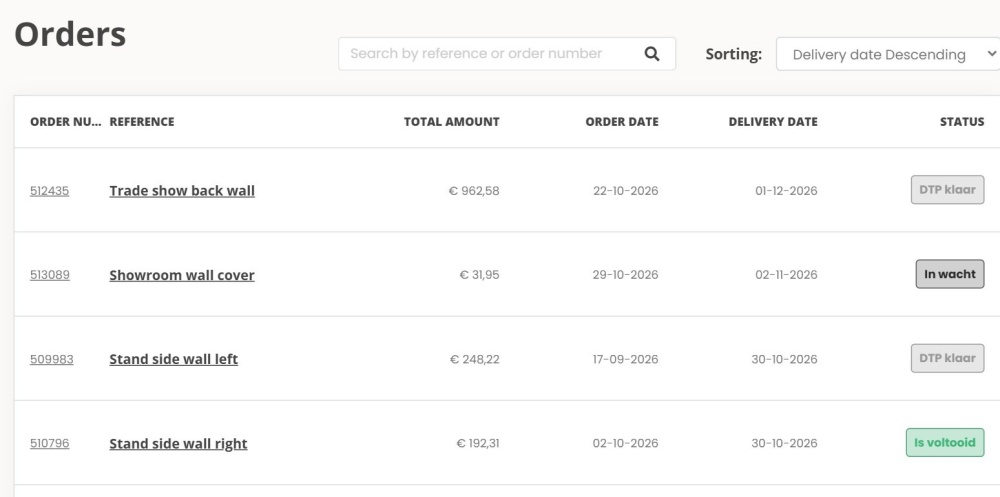
The status follows your order through the process: waiting for files, file check, production (printing, cutting, finishing, packing) and shipping. If an order is waiting for uploads, a file is still missing.
You can't change a placed order yourself, except for the PO number. Need something changed or a file replaced? Contact your regular back office manager, email sales@vanstraaten.com or call us at +31 23 5551861 as soon as possible, and mention the order number.
COMPLAINTS CENTRE
Did something go wrong? Report it through the Complaints centre in your account menu. Choose the order, describe the problem and add a photo, so we can assess and solve it quickly.
QUESTIONS OR IDEAS?
For urgent orders or changes to an order: contact your regular back office manager, email sales@vanstraaten.com or call us at +31 23 5551861. Questions about the portal or tips to improve it? Email portal@vanstraaten.com.
